How to access Ninja Portal for Home Access
The following are the steps to access Ninja Portal with Home Access-
1. Ninjas must use the correct Ninja Portal URL, i.e., https://impact.codeninjas.com/
2. In case a Ninja is a first-time user, Senseis must let them know which username they can use.
3. For Center Staff:
Ninja usernames are displayed on MyStudio customer and can be browsed to using the following steps.
Ninja usernames are displayed on MyStudio customer and can be browsed to using the following steps.

MyStudio Steps:
- Login to MyStudio
- Browse to "All Customers"
- Browse to "All Customers"
- Search in "Search All" tab using the Participant or Parent name.
- Open the Customer profile, and browse to Custom fields section to check the allotted username.
4. For Senseis:
You can check the username following the alternative steps via the Center Portal-
You can check the username following the alternative steps via the Center Portal-
Center Portal Steps:
- Login to Center Portal using your credentials
- Once on Homepage, click on "View All Ninjas" button or "Ninjas in Dojo" button.
- Search for the Ninja using Ninja name or Parent name in "Search All Ninjas" tab
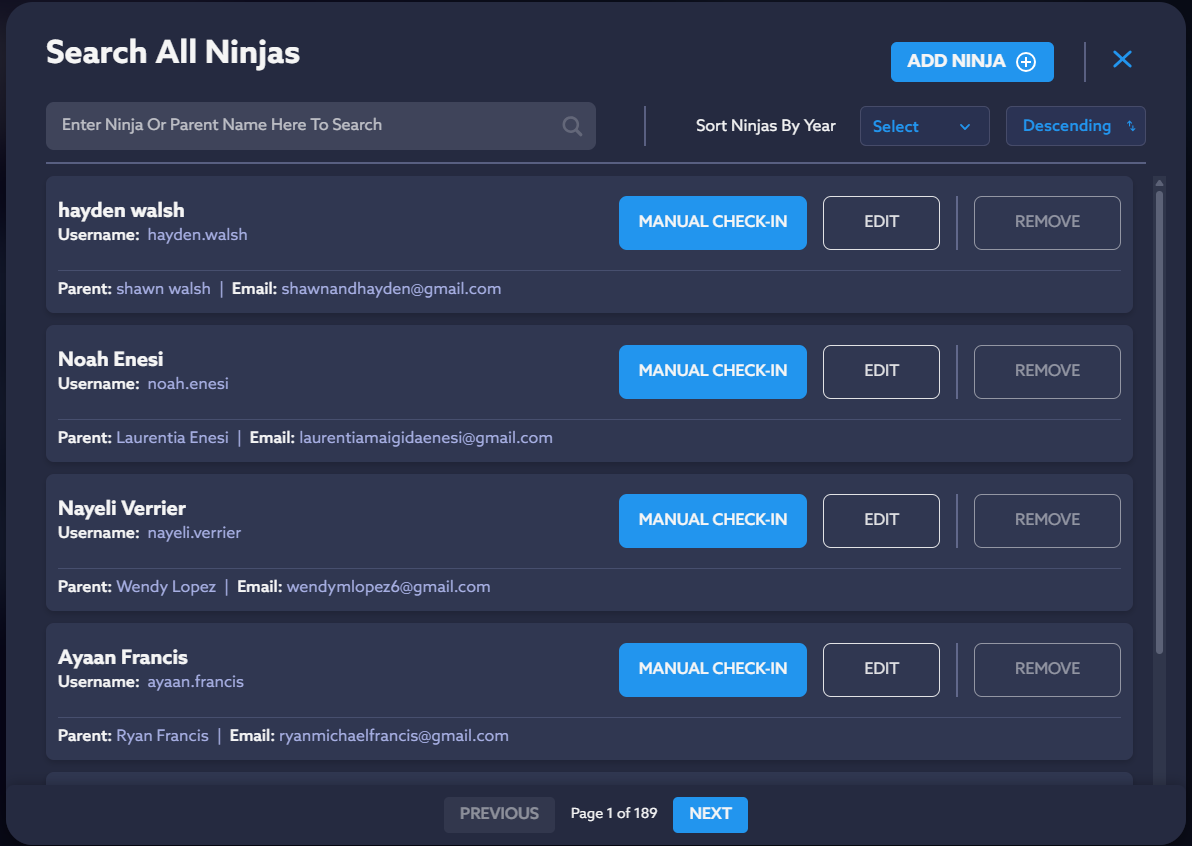
- You'll find the Ninja username alongside the Ninja name
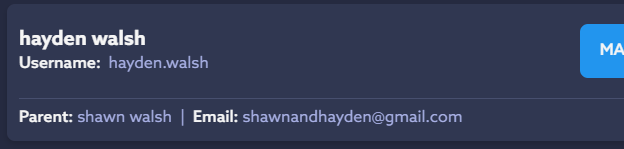
- You'll find the Ninja username alongside the Ninja name

For First-time Users-
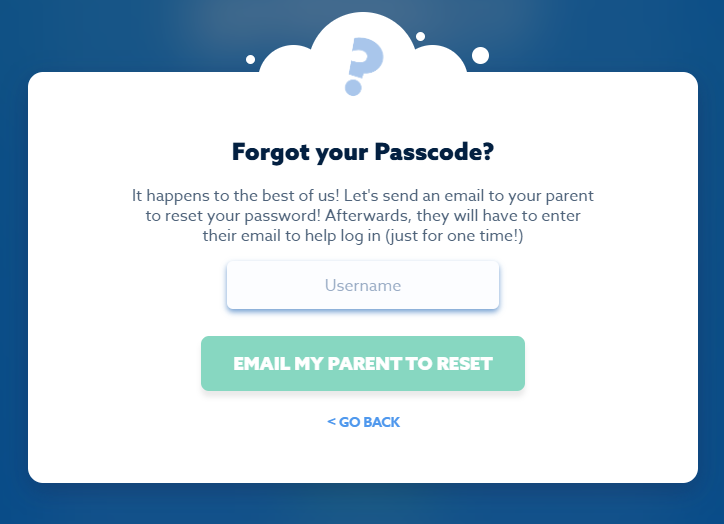
A. Ninjas will be prompted to Create a Passcode for themselves. When the Ninja opens the Ninja portal, click on "Forgot your Passcode?" to prompt setting up the Passcode to your account. Add your username in the Username section. And then click "Email my Parent to Reset".
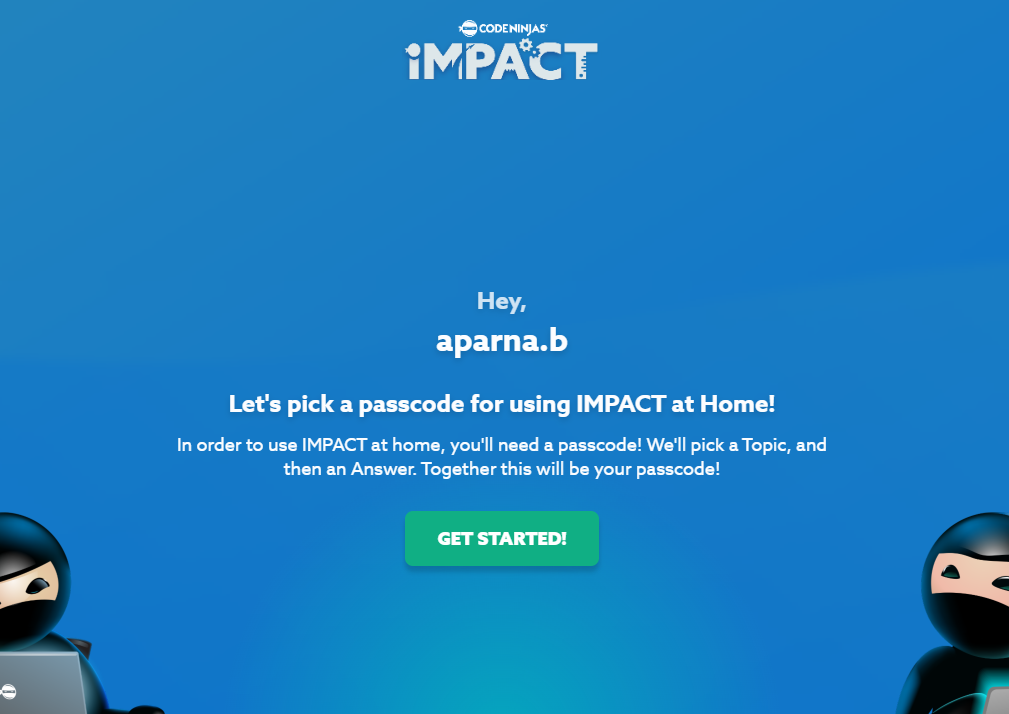
B. Once you access the reset passcode link from the Parent's registered email, the prompt will take the user to a new tab where they'll be asked to Get Started on the Passcode creation. Click "Get Started" to proceed.
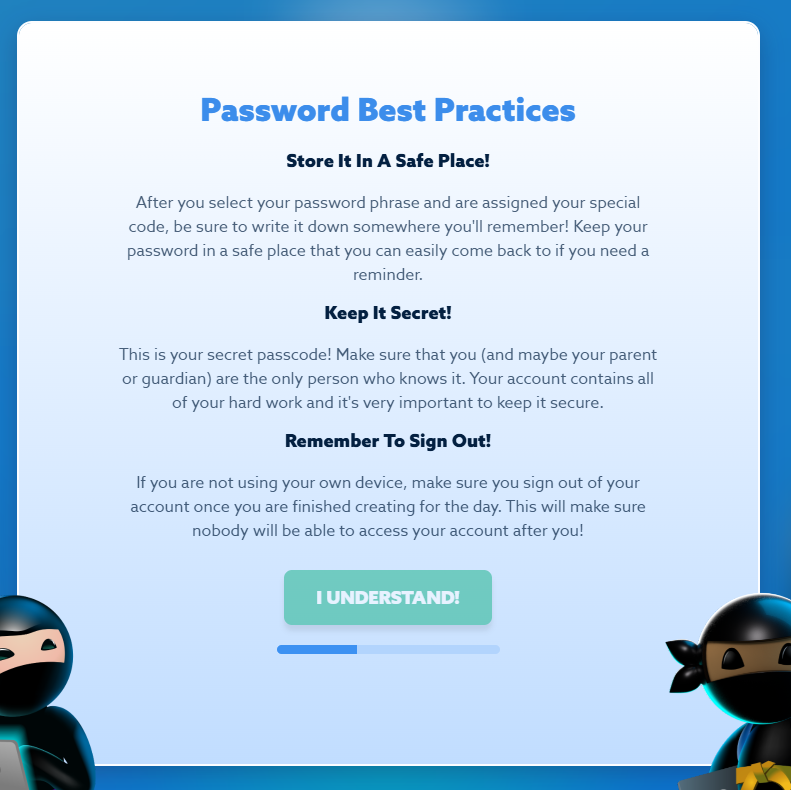
C. Read through the best practices to create a safe passcode. Then click "I Understand".
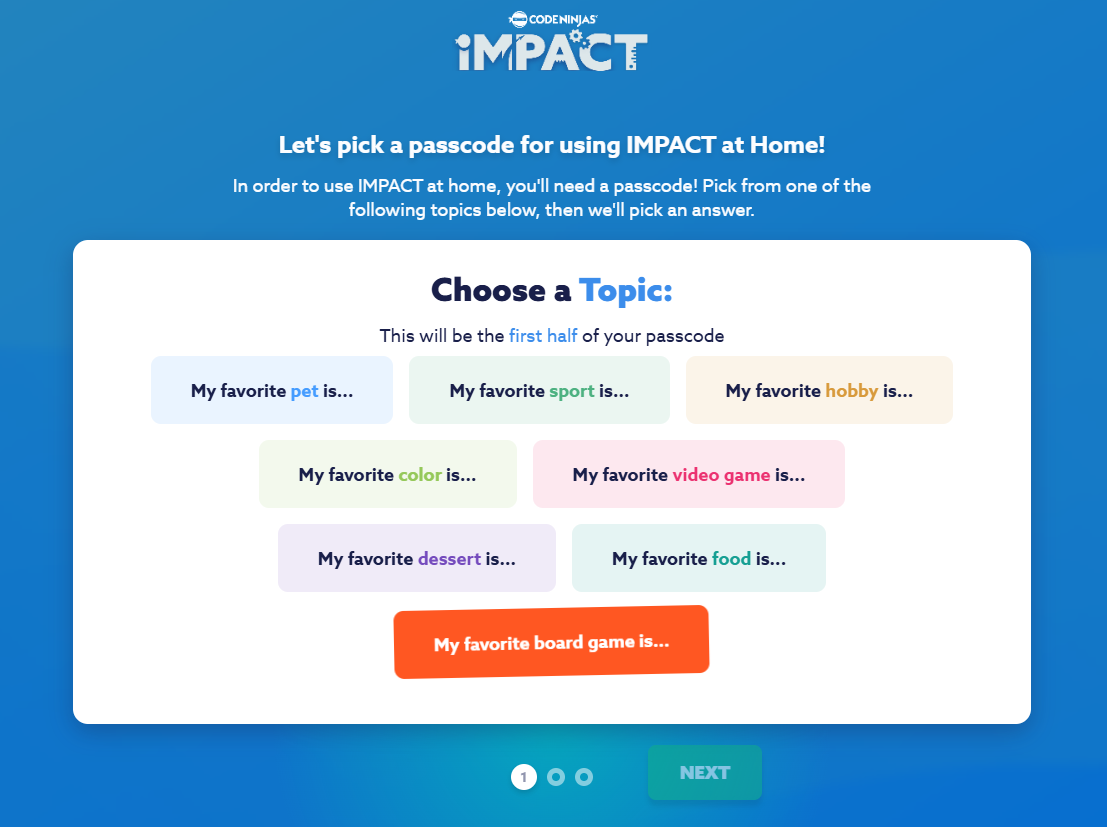
D. Select a topic from the displayed options, which is easy to remember, then click "Next".
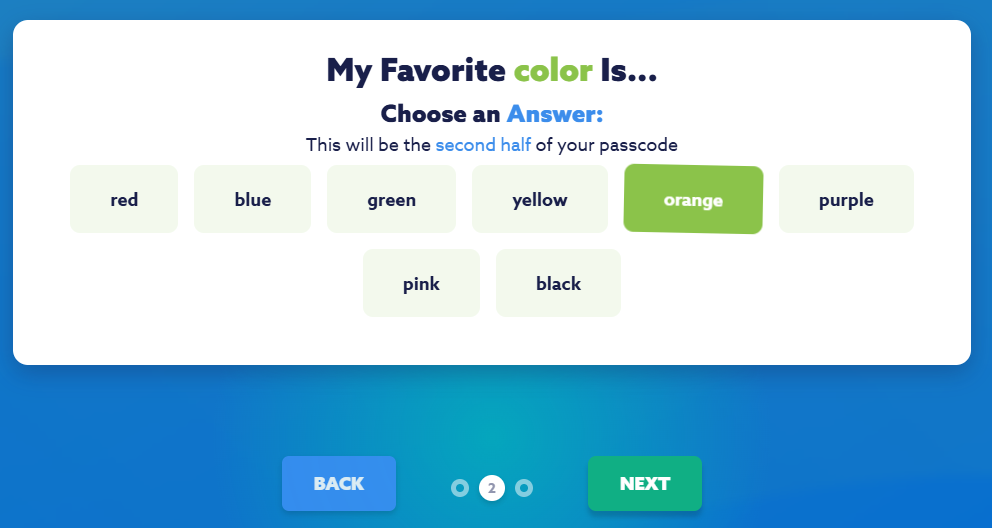
E. Choose an Answer to the Topic selected from the available options. Then click Next.
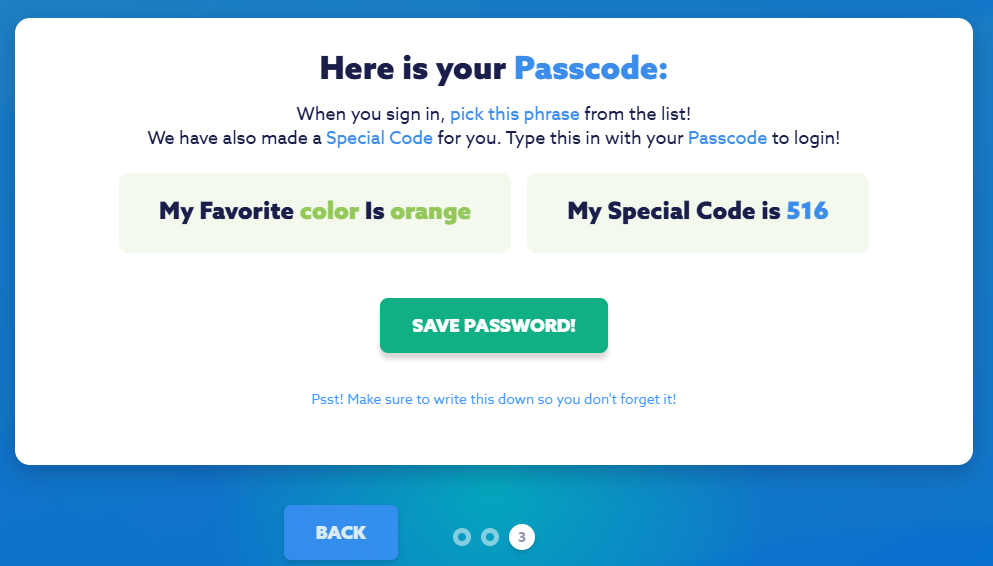
F. You'll see the Passcode and your special code. Once you click "Save Password", you'll be taken to the login screen.
B. Once you access the reset passcode link from the Parent's registered email, the prompt will take the user to a new tab where they'll be asked to Get Started on the Passcode creation. Click "Get Started" to proceed.
C. Read through the best practices to create a safe passcode. Then click "I Understand".
D. Select a topic from the displayed options, which is easy to remember, then click "Next".
E. Choose an Answer to the Topic selected from the available options. Then click Next.
F. You'll see the Passcode and your special code. Once you click "Save Password", you'll be taken to the login screen.
5. Let's go back to the Ninja Portal login screen now. When the Ninja can see this screen, they should click on the option "Log In At Home" for Home Access.
6. At Home Access Ninjas will be able to see the following screen.
7. Ensure these details are added properly-
- Add the username provided by the Sensei
- Select the options from the "Topic" and "Answer" dropdowns

- Make sure to remember these codes. Or note them somewhere for easy access.
- Then add a 3-digit code that Ninja can easily remember
- Check the "Remember Me" box for future
8. When you click "Log in", you'll get a pop-up declaring that the device is new, and will ask you to confirm your Parent registered email.
9. Once you've added your Parent's registered email, you can-
- Click "Go back", if you want to change the Passcode
- Click "Continue", if you want to complete the Login
- Click "Go back", if you want to change the Passcode
- Click "Continue", if you want to complete the Login
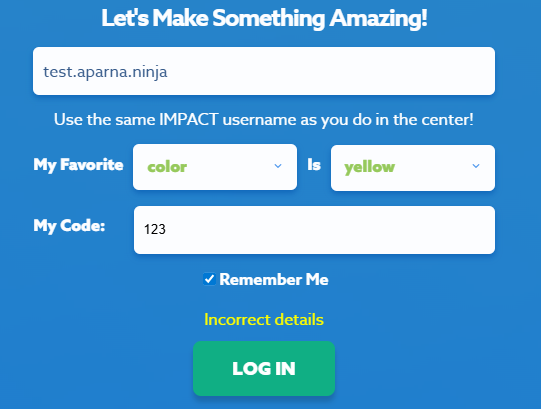
Note: Make sure the Ninja is active on Center Portal, or else they won't be able to login, and they'll get an error saying they've added "Incorrect details" as seen below-
10. For already existing Ninjas, they can add their Username, Topic, Answer, and Code
10.1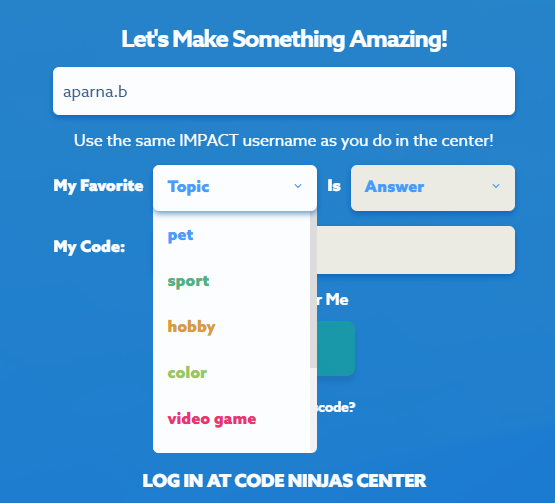
10.1
10.2 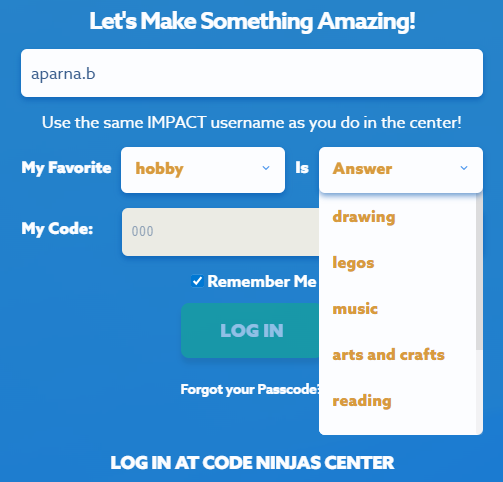
10.3
11. Add your parent email to ensure that the Login is made by the Ninja themselves.
12. Click Continue to complete login.
13. With a successful login, you'll be taken to your Ninja Portal Homepage
Home Access FAQs
- Where and when do ninjas set up the "My favorite" topic and answer?
Ans- For best practices, we suggest that the Ninjas store the passcode Topic, Answer and Special Code noted somewhere where they can access it easily.
For first-time Ninjas, they'll have to click on "Forgot your Password?" and follow the steps as mentioned in the Notes Section of the KB Article to set the passcode.
For existing Ninjas, in case they don't recall their passcode, they'll have to reset their passcode. - Is that topic and answer retrievable somewhere?
Ans- Yes, the topic and answer is retrievable as it is stored in our databases securely. And they cannot be accessed by the Center Staff or Ninjas(unless they remember it). - Where do they set up the code?
Ans- The initial step to set up the passcode would be to click on "Forgot your passcode?", and follow the instructed steps, to complete setting up a code for Ninja's Home Access login. - Is the code retrievable?
Ans- Yes, the code it retrievable in our databases, however Center Staff and Ninjas don't have an open access to the same.
For Ninjas and Parents, if they don't remember the Code, they'll have to reset it.
For Center Staff, they aren't supposed to have any access to Code. - Is the only way to retrieve a lost code to request the "Forgot your passcode" option?
Ans- Yes, the one and only way to retrieve a lost code is to set a new code which will replace the former code in the database.
Related Articles
Steps to Access Ninja Demo Account on Center Portal
1. Use your Center Portal credentials to login to Center Portal. You'll be taken to Center Portal Homepage as given- 2. On the Homepage, click on the swap button, with the "Ninja Portal" tag on the left-hand side of the screen. 3. When clicked, ...Steps to edit Ninja details in the Center Portal
You can now easily edit Ninja and Parent details directly from the Center Portal. This feature will be useful when Dojo is decommissioned, and centers can easily use this option as the main workflow to manually update/change the Parent/Ninja details. ...Center Portal: Steps to Extend a Ninja's Session
Mentioned below is a step by step guide to extend a Ninja's Session on the Center Portal. 1. Login to the Center Portal using your Code Ninjas credentials. And browse and click on the "Ninjas in Dojo" tab 2. When you're on the "Ninjas in Dojo" ...Center Portal :: Ninja Check-in- Steps to Undo/Remove Check-in
Note: Removing/Undoing the check-in will only remove Ninja from the "Ninjas in Dojo" screen. 1. From the "Ninjas in Dojo" screen, click on "View all Ninjas" button. 2. On the "Search All Ninjas" screen, add input for Ninja's name you want to undo ...Steps to Access "Ninjas in Dojo" screen
1. Use your Center Portal credentials to login to Center Portal. You'll be taken to Center Portal Homepage as given- 2. Click on "Ninjas in Dojo" button on the Right-hand side of the screen. 3. You'll be redirected to a new tab which displays the ...